
You can let an AI assistant work with your logbook. Ask it for your totals, let it find a flight, or tell it to fix a registration. There are two ways to connect one, and both use the same safety rules.
-
The Jetlog connector (MCP server). A chat assistant such as Claude or ChatGPT
connects to
https://jetlog.app/mcpand signs in as you. Nothing to install. - The Jetlog CLI. A command-line tool for your Mac, Linux or Windows computer. It converts and imports logbook files, reads your logbook and corrects flights. Coding agents such as Claude Code and Codex use it directly.
What an assistant can do
- Read your totals, flights, people and aircraft, and search by date, aircraft, airport, flight number or crew.
- Propose changes: add a flight or a simulator session, correct a time or a registration, change a person. It shows you exactly what will change before anything is written.
- Work with files, photos and signatures on an entry, when you allow it.
It does not import a whole file by itself. For that it hands you a link, and you confirm the import in the Jetlog app.
How changes stay in your hands
- A proposal expires after 24 hours, and only the connection that made it can apply it. If the entry changed in the meantime, nothing is written and you get a fresh preview.
- After a change is written, the Jetlog app sends you a notification. Under Settings > Connected Apps & CLI > Logbook Changes you can see what changed and undo it.
- Access is limited to what you tick when you connect, and you can untick changes. The assistant never sees your password or token.
- You can end any connection at any time in Settings > Connected Apps & CLI. It stops working immediately.
- Text that comes back from your logbook, such as remarks, is treated as data by the assistant. Check the preview anyway, your logbook is a legal record.
Connect Claude
Use the connector URL:
https://jetlog.app/mcpClaude on the web, the desktop app or your phone
- Open Settings > Connectors and choose Add custom connector.
-
Enter the name
Jetlogand the URL above, then add it. - Choose Connect. A Jetlog page opens in your browser. Sign in with the Jetlog app or with a one-time code sent to your email address.
- Pick what the assistant may do. All options start ticked. Untick Propose changes if you only want it to read. Then choose Allow.
Start a chat and ask, for example, “What are my total PIC hours this year?”
Using Claude Code? See Claude Code, Codex and other coding agents below. There the CLI is the better fit.
Connect ChatGPT
ChatGPT adds Jetlog as a plugin, on chatgpt.com in your browser. Whether you can add your own plugins depends on your ChatGPT plan, and in a work workspace your admin may need to allow it.
- Go to <a href=”https://chatgpt.com/plugins”>chatgpt.com/plugins</a>, choose + and then Add custom MCP server.
-
Enter the name
Jetlogand the server URLhttps://jetlog.app/mcp, and choose OAuth for authentication. - Read the warning, choose I understand and want to continue, then Create as a plugin.
- Install the Jetlog plugin from your plugins. A Jetlog page opens. Sign in with the Jetlog app or with a one-time code sent to your email address, pick what ChatGPT may do and choose Allow.
- Start a chat and ask your question. ChatGPT asks you to confirm before it uses a tool that can change your logbook.
The exact menu names in ChatGPT can change. If you get stuck, mail
support@jetlog.appAny other assistant that supports remote MCP connectors with OAuth sign-in can use the same URL.
Install the CLI
The CLI needs Node.js 20 or newer.
npm i -g jetlog-cli
jetlog --help
Or run it without installing: npx jetlog-cli <command>.
Sign in to the CLI
jetlog login --scope write
The CLI shows a number and a QR code. Scan the code with your iPhone camera
and the Jetlog app opens an approval screen. Pick the same number the CLI
shows. If you want the CLI to make changes, switch on Make changes to your
logbook first. It starts off, and without it the login can only read. Leave
off --scope write for a read-only login.
No camera? Open the address the CLI prints and enter the code, or in the app go to Settings > Connected Apps & CLI and enter the code there.
The login is stored on your computer in ~/.config/jetlog/credentials.json.
Sign out with jetlog logout, or revoke it in the app.
A short session
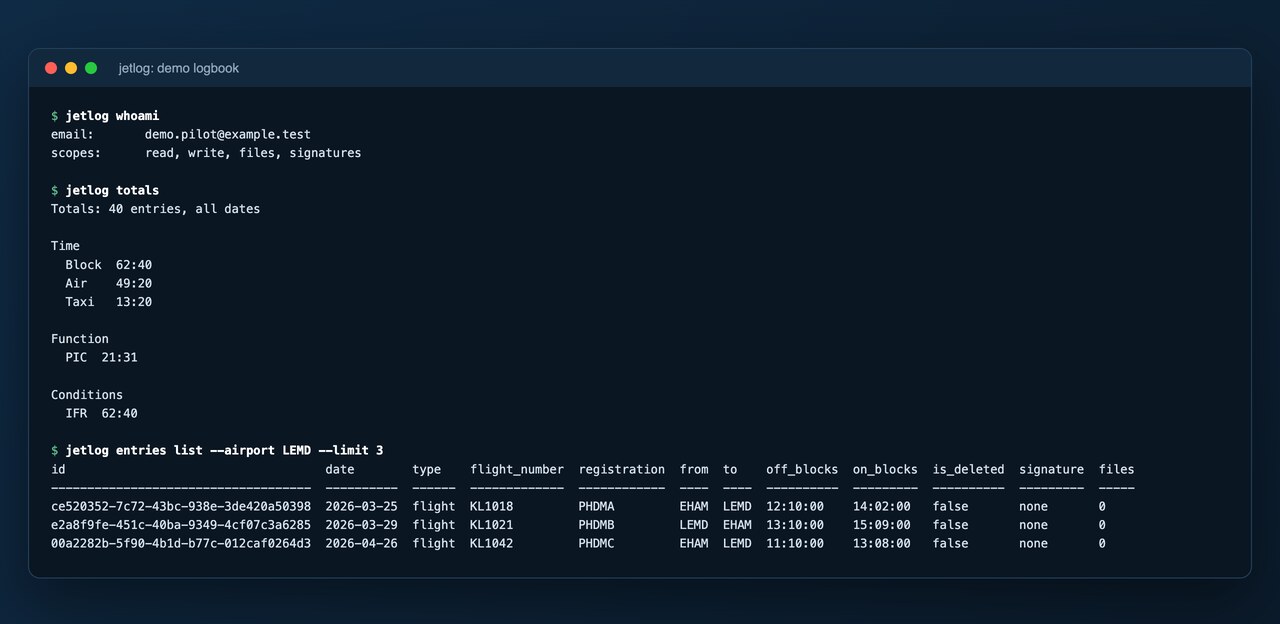
Demo data, not a real logbook.
Useful commands:
| Command | What it does |
|---|---|
jetlog whoami |
Show who you are signed in as and what the login may do |
jetlog totals |
Flight-time totals for your account |
jetlog entries list --from 2026-01-01 --airport EHAM |
Search your flights |
jetlog export |
Download your whole logbook as JSON or CSV |
jetlog import file.txt --from logten --dry-run |
Preview an import, writes nothing |
jetlog changes propose fix.json |
Preview a correction to existing flights, writes nothing |
jetlog changes apply <id> |
Apply a proposed change after you confirm it |
Every command has --help. The full list is in the
Claude Code, Codex and other coding agents
Coding agents that work in a terminal, such as Claude Code and Codex, use the Jetlog CLI directly. No MCP server needed. Set it up once:
npm i -g jetlog-cli
jetlog login --scope write
jetlog skill install
jetlog skill install teaches Claude Code and Codex how to use Jetlog. After
that, just ask: “How many night landings did I log this year?” or “The
registration on my flights of 3 March is wrong, it should be PH-EXA.”
The agent runs jetlog commands itself, the same way you would. It reads
your totals and flights, exports, previews and runs imports, and works with
files, photos and signatures. To correct a flight it proposes the change with
jetlog changes propose, shows you the before and after, and only applies it
after you say yes. You get the same notification and undo in the app as with
any other assistant.
The rules the agent follows are in jetlog guide.
Switch access off
Open Settings > Connected Apps & CLI in the Jetlog app. Every assistant, partner app and CLI login is listed there. Choose Revoke on one and it stops working right away. Changes it already made stay listed under Logbook Changes, and you can undo them.