
Connecting your roster
Pick the roster source that fits your airline, see how often Jetlog checks it, and what a roster import never changes.
On this page
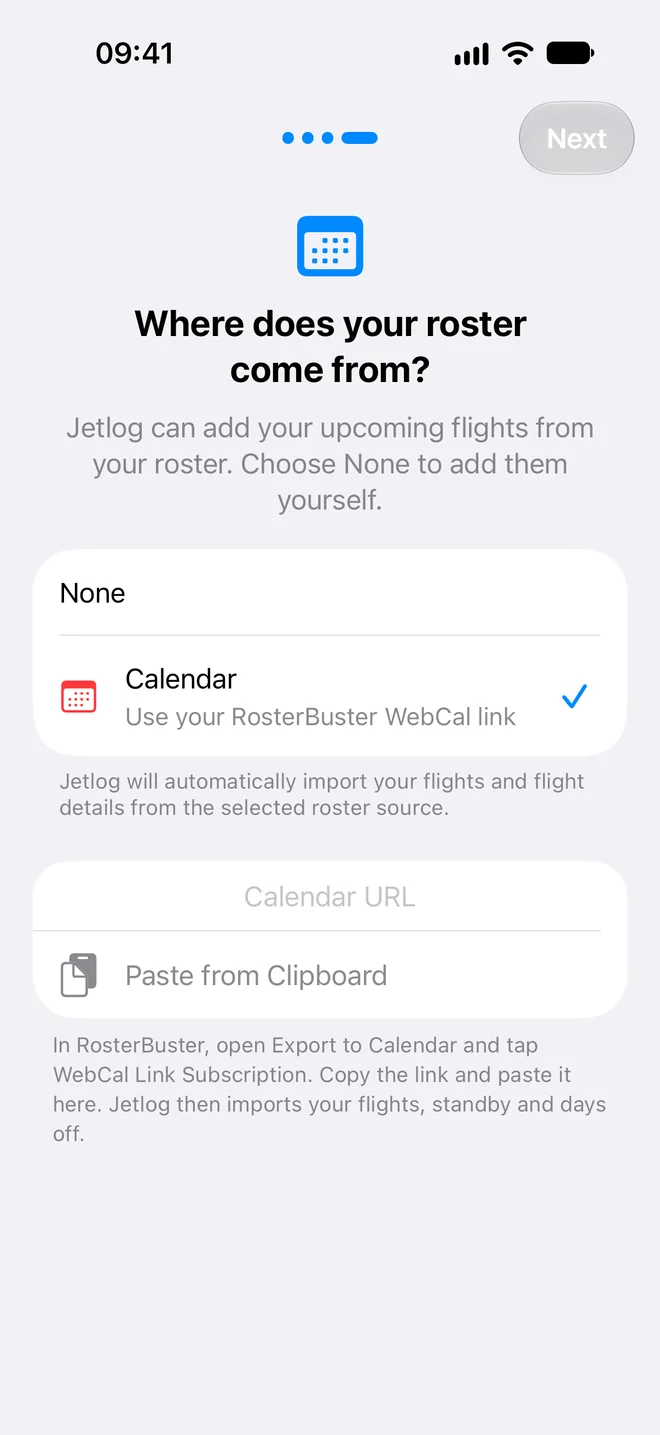
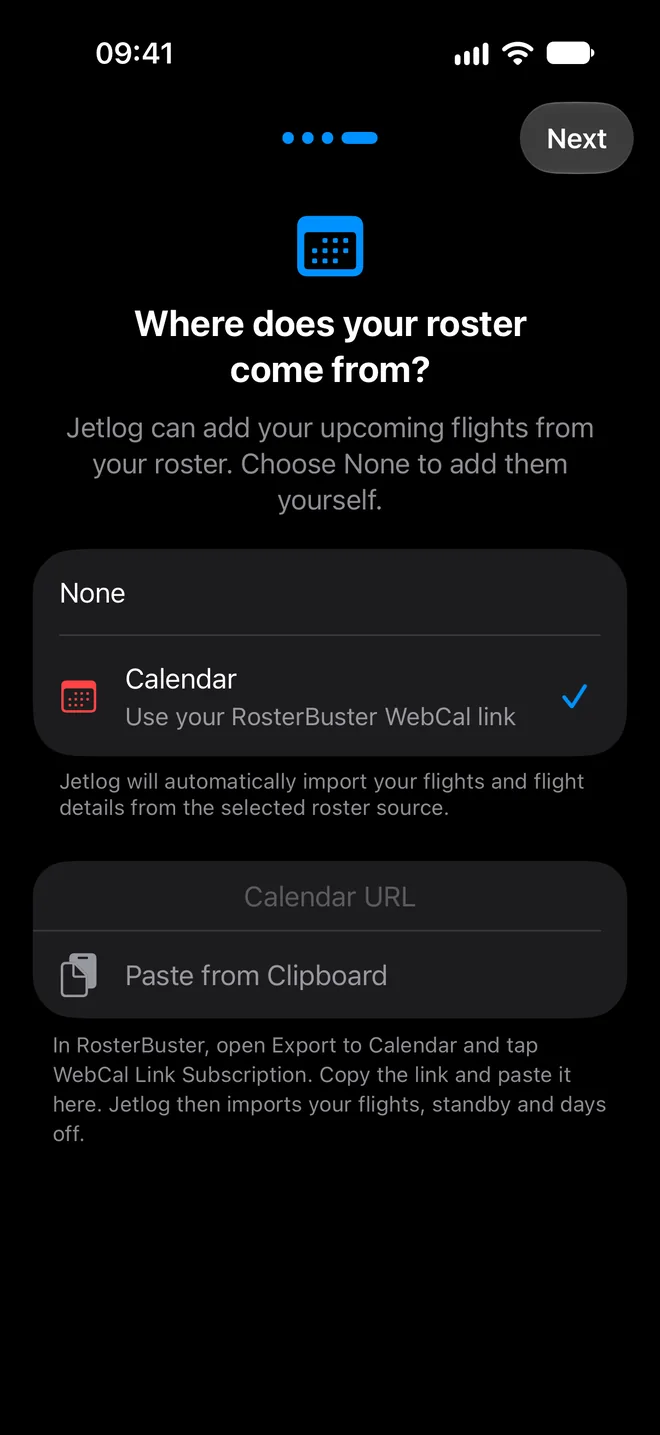
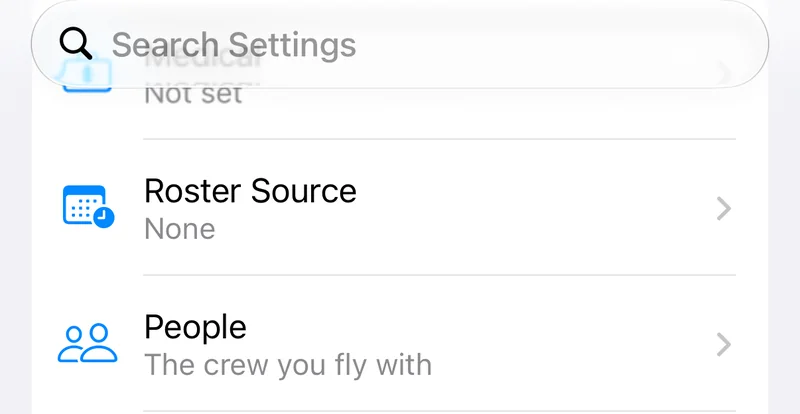
Open Settings > Flying > Roster Source and choose where your roster comes from. Jetlog then adds your upcoming flights by itself. Choose None if you prefer to add flights yourself.
If no airline is set, the screen first shows Set your airline, because some sources only appear for certain airlines. Set it under Settings > Flying > Airline.
Which source fits your airline #
| Airline | What to use |
|---|---|
| KLM, KLM Cityhopper | KLC Rooster or Calendar, see KLM and KLC |
| Transavia | Calendar, with the link from the CRP app, see Calendar links |
| TUI airlines | Calendar, with the RosterBuster link, see Calendar links |
| Ryanair, Ryanair UK | Ryanair Connect, see AIMS eCrew and Ryanair Connect |
| Airlines that use eCrew | Import from AIMS eCrew, see AIMS eCrew and Ryanair Connect |
| Any other airline | Calendar, if your crew app or roster system gives you an iCal link |
Calendar and KLC Rooster are set in Roster Source and check your roster by themselves. The eCrew and Ryanair Connect imports run when you start them, from Settings > Logbook > Import under From Your Airline or from the + button in the logbook.
How often your roster is checked #
Calendar links and KLC Rooster are checked about every 15 minutes. If the roster has not changed, Jetlog skips the check, but it reads the whole roster again at least every 6 hours.
Jetlog adds flights that are still to come. When a future flight is no longer on your roster, it is removed from your logbook.
What a roster import never touches #
- Flights that have started or are completed. They are not changed, not duplicated and not removed.
- Flights you deleted yourself. They stay deleted. Only a flight that Jetlog removed earlier because it left your roster can return if it comes back on the roster.
- Changes you made to a future flight. They stand.
Simulator sessions on your roster are added as simulator sessions. Duty days, standby and days off do not show in the logbook.
What the roster source row tells you #
Next to Roster Source in Settings you see the state of your source. If Jetlog cannot read your link or key, it keeps trying on its own and the row says "Trouble with your link, still retrying", "Trouble with your key, still retrying" or "Can't reach source, still retrying". After three failures in a row you also get one notification. You do not need to do anything yet.
If it keeps failing, Jetlog stops checking. That happens after repeated failures over 24 hours, or after many failures over a week. The row then says "Link expired, tap to fix", "Key expired, tap to fix" or "Can't reach source, tap to fix".
- Open Settings > Flying > Roster Source.
- Tap the orange row at the top, for example Calendar link expired or KLC Rooster key expired, to try the same link or key again. Or paste a new link or key and tap Save.
Checking starts again right away. Flights that were added earlier stay in your logbook.
Import a duty plan PDF #
If your airline gives you an individual duty plan as a digital PDF, open Settings > Logbook > Import and tap Choose File, or tap + in the logbook and choose Import File. Jetlog recognises the duty plan and opens the Your Roster screen. A scanned PDF is not read as a duty plan.
The Your Roster screen #
Imports that you start yourself end on Your Roster. It lists what Jetlog will do before anything changes, with a label on each flight: New, Changed, In Logbook, Needs Check, Departed or Flown. A tick includes or leaves out a flight. A flight that Jetlog is not sure about is marked Needs Check and is left out of the count until you have checked it.
Flights that are in your logbook but no longer on the roster appear under No Longer on Your Roster. Ticked flights are removed. Flights that have departed are left as they are.
Tap the button at the bottom, for example Add 12. Jetlog then says Your Logbook Is Up to Date and shows what it did. Tap Undo within 10 minutes to put your logbook back as it was. A flight that has departed, been completed or been signed in the meantime stays. After you tap Done, syncing continues and Undo is gone.
If something on the screen is wrong, tap the ⋯ button and choose Report a Problem. Describe what happened under What happened? and tap Send. Your password is never sent. The report is only used to fix the import for your airline and is deleted within 90 days.
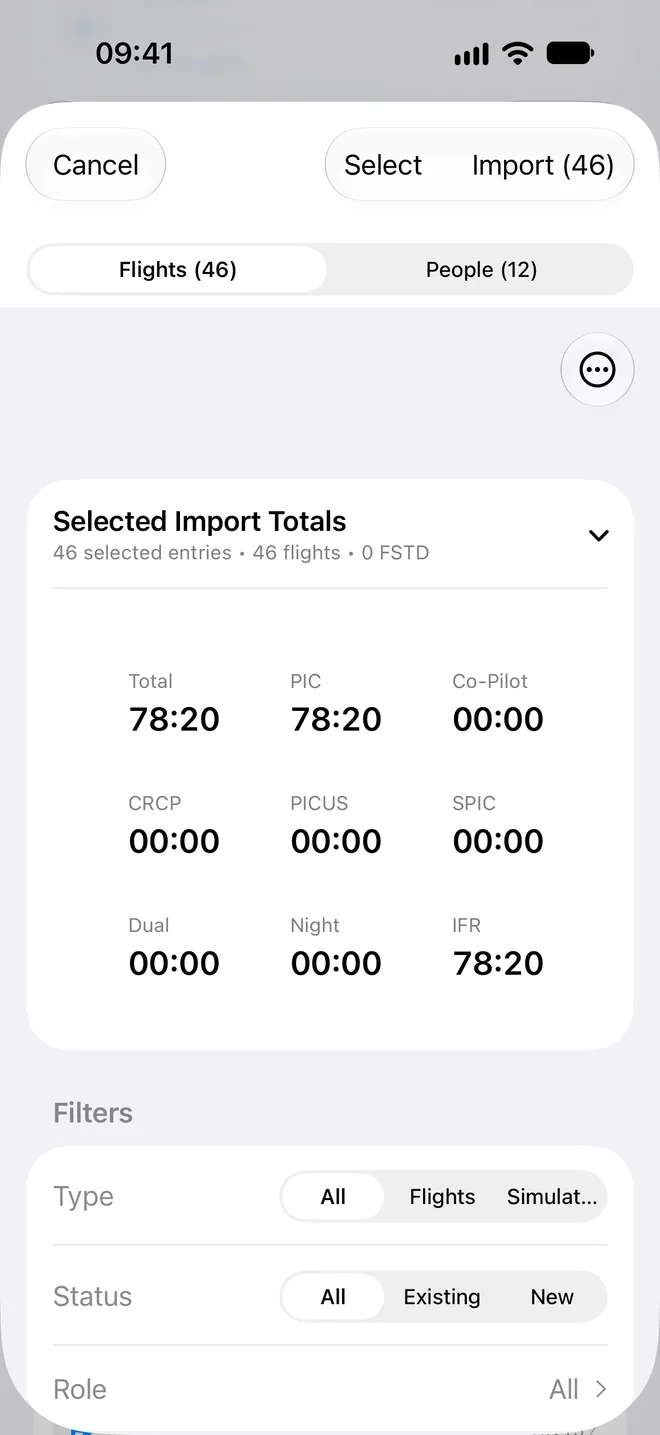
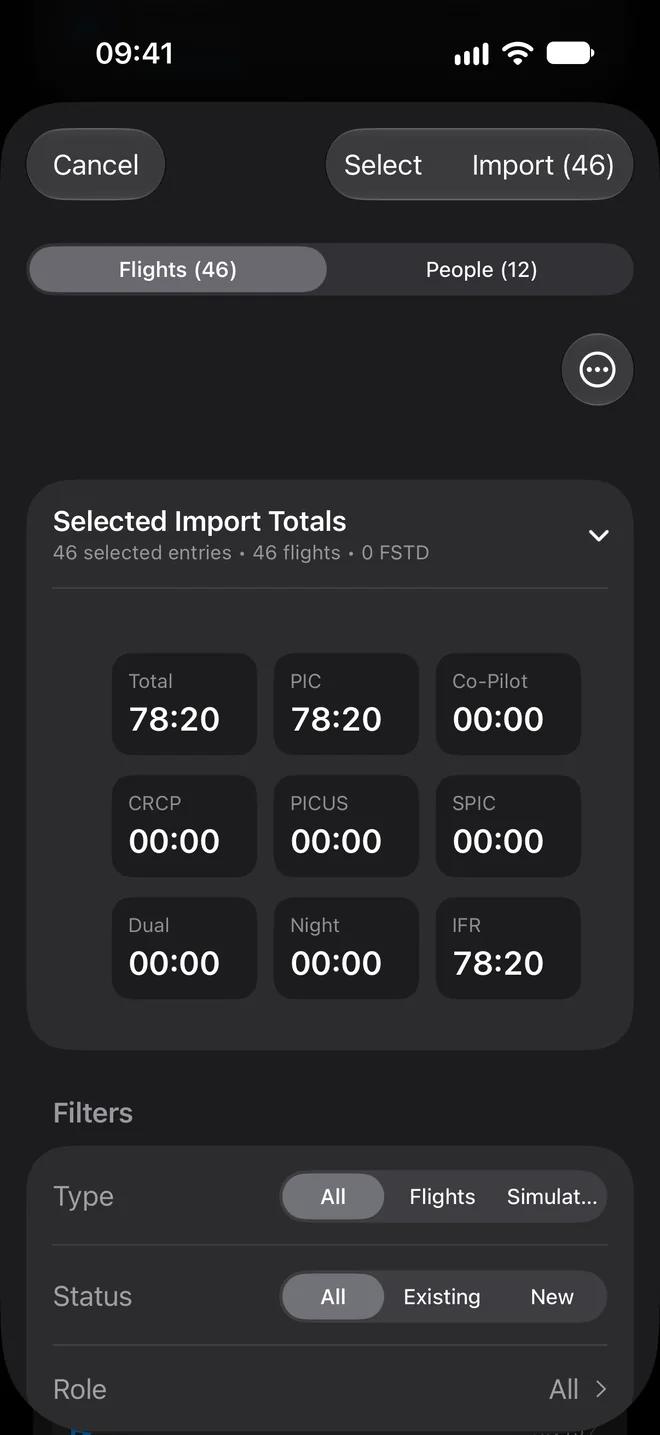
Jetlog needs your name from your profile to find you in the crew list. If it asks you to finish your profile, do that and import again.
Still stuck? Write to support and a pilot answers.