
Importing from LogTen Pro
Export your flights from LogTen Pro and bring them into Jetlog, with crew and aircraft from the Address Book Export.
On this page
Export Export Flights (Tab) from LogTen Pro, then pick that file in Jetlog. The Address Book Export is optional and gives you proper crew and aircraft records.
Export from LogTen Pro #
Jetlog walks you through this in the app, in five steps:
- In LogTen Pro, go to the Logbook tab and tap Reports.
- Scroll down to the More section and tap Exporters.
- Select Export Flights (Tab) from the list.
- Tap Configure Report... at the bottom of the screen.
- Generate and save Export Flights (Tab). The Address Book Export is optional, but recommended.
Import the files in Jetlog #
- Open Settings > Logbook > Import.
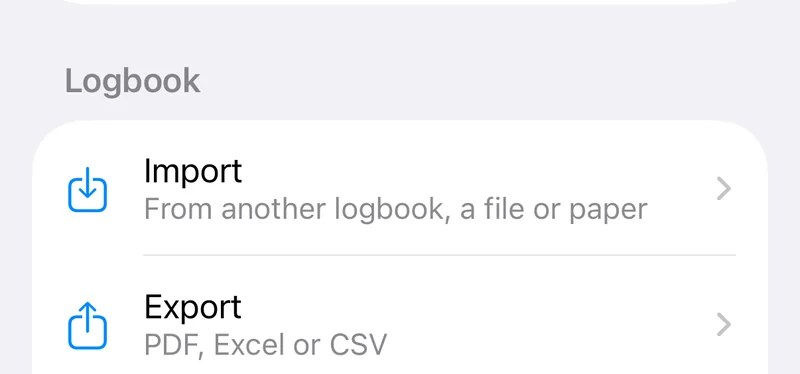
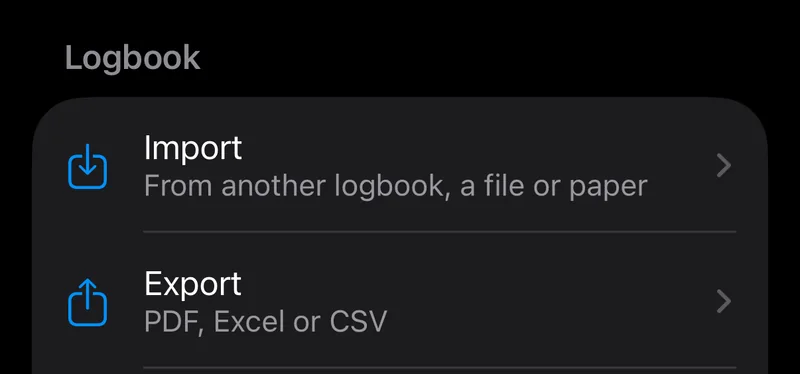
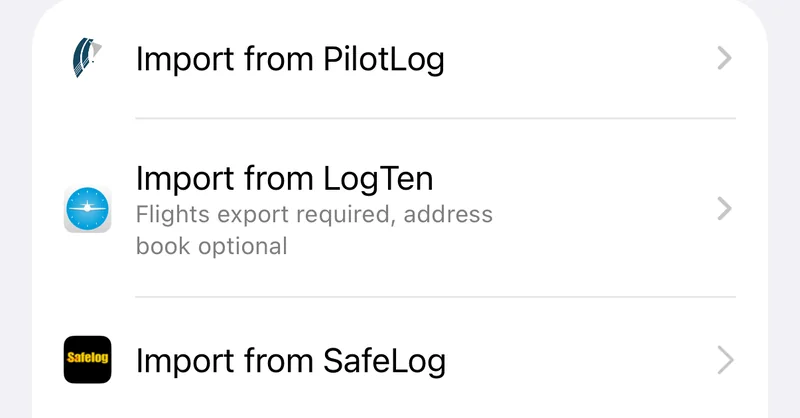
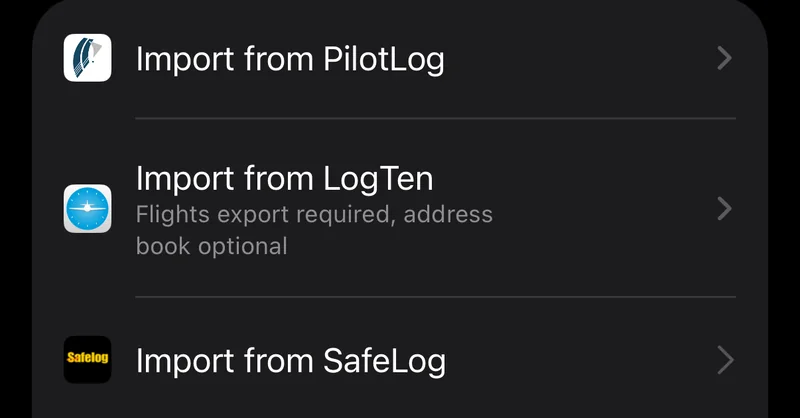
- Tap Import from LogTen. The tutorial screen Export from LogTen shows the steps above.
- On the last step tap Select 1 or 2 Files.


- Pick Export Flights (Tab), and the Address Book Export if you made one. Select both in the same picker.
Jetlog needs one or two files. With a different number it asks you to select Export Flights (Tab), which is required, and optionally the Address Book Export.
What the Address Book Export adds #
It carries the details of the crew and aircraft in LogTen. Jetlog uses it to create proper people and aircraft records and to match them to the ones you already have.
Questions Jetlog may ask during the import #
Depending on your data, you can see these extra screens before the review:
- Fuel Unit: if the file has fuel figures, choose kilograms, pounds, litres or US gallons. Import Without Fuel skips them.
- Map Switches: LogTen lets you define your own capacity switches. Here you map each one to a role in Jetlog, or choose Ignore.
- Second Officer Flights: when three or more flights carry a second officer time shorter than the block time, Jetlog asks how to treat them. For each of role, night and IFR you choose between keeping the time as logged and recalculating it, and for IFR between the entire flight and none. Tap Apply and Continue to go on.
Check the result #
You land on the review screen, where nothing is saved yet. Compare the Selected Import Totals with the totals in LogTen, fix any Set role chips, then import. Rows that match flights you already logged are merged by default. See Importing from another logbook for the review screen, duplicates and removing an import.
Still stuck? Write to support and a pilot answers.