
Sign-in and sync problems
Fixes for email codes that fail, passkeys, a changed email address, stuck sync and a removed device.
On this page
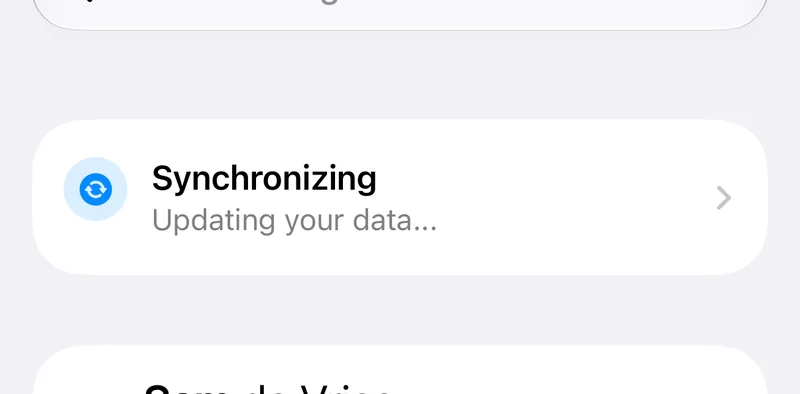
Most sign-in problems are an expired or used code. Most sync problems are shown on the sync card at the top of Settings, which tells you what is wrong. For the normal flow see Signing in.
The email code does not work #
The email contains a link and a code of 8 characters, shown like XXXX-XXXX. Both are valid for 10 minutes and work once. Open the link on the device where you asked for it, or enter the code there.
- Tap Resend once the countdown has finished.
- Tap Paste Code if you copied the code, then Verify Code.
If no email arrives, check your spam folder and that the address is the one you signed up with.
I use a passkey or Sign in with Apple #
A passkey is added in Settings > Account > Passkeys, with Set Up Passkey or Add Passkey. Signing in with Apple or with an email code on the same address leads to the same account. Jetlog matches accounts on the email address.
I want to change my email address #
You cannot change it in the app. The email on the Account screen is read-only. Write to support@jetlog.app from the old address and say which address you want instead.
My account was deleted #
If the app says your account was previously deleted, sign in again to create a new account. The old logbook was erased after the 30 day grace period. Within those 30 days you can still sign in and cancel the deletion, see Deleting your account.
Sync is stuck #
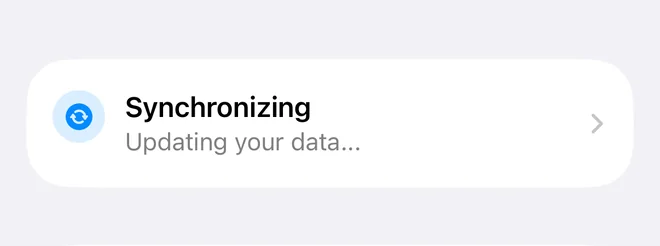
- Open Settings and read the sync card. No Connection means you are offline, and sync resumes by itself.
- Update Required means you must update Jetlog from the App Store.
- Session Expired or an orange Sign in again in the Logbook title means you must sign in again. Your logbook stays on the device.
- Tap the card to open Sync and read the current problem and history.
- For a flight marked "Sync blocked", open it, read "Not synced to your account", and tap Edit to fix it or Delete.
If it still fails, open Sync, tap Options and Share All, and send it to support@jetlog.app. See Sync and your devices.
The app says Device Removed #
The device was removed from your account, so it signed itself out and erased its local data. Sign in again and the logbook downloads again. If you did not remove it yourself, use Sign Out Everywhere in Settings > Account > Devices from a device you trust.
Sign out without losing data #
Settings > Account > Sign Out asks you to confirm and warns that unsynced items will be lost. Check the sync card first and wait for Synchronized.
Still stuck? Write to support and a pilot answers.