
PDF logbooks and other apps
Which file Jetlog needs from eCrew, OMIS, AerisLog, CAE RB Logbook, SafeLog, FlightLogger, Flylog, Skylife and OffBlock, and what to expect on import.
On this page
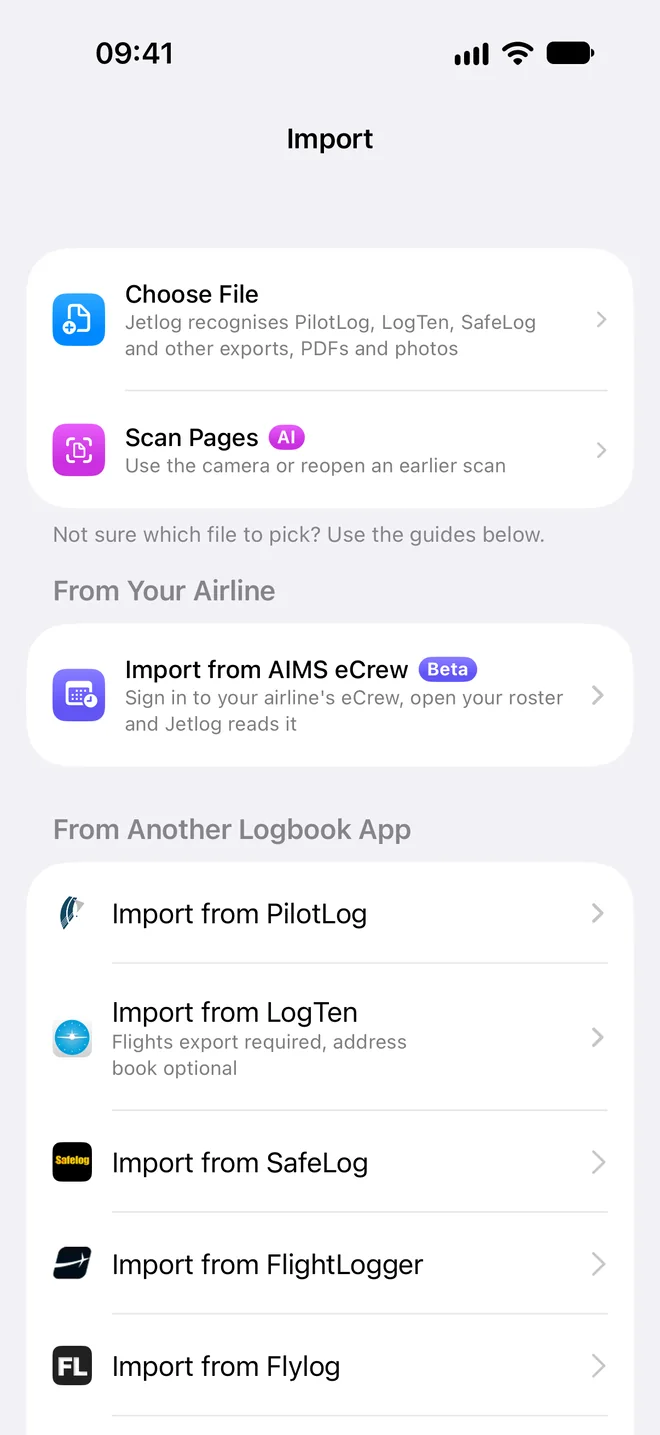
Open Settings > Logbook > Import and use the row for the app, or tap Choose File and let Jetlog recognise the file. This page lists the file Jetlog needs from each app.
CAE RB Logbook #
Tap Import from CAE RB Logbook. The screen Export from RB Logbook shows two steps:
- In the RB Logbook app, tap Export/Import in the tab bar. On the Export tab, scroll down to Other and tap Export to CSV.
- Enable All flights, select the report type Flights, and tap Generate export. Repeat for Aircraft and People. Save all files to your device.
Then tap Select Files and pick the CSV files. Jetlog uses up to three: flights, aircraft and people, and works out which is which.
eCrew Pilot LogBook Report #
Jetlog reads the Pilot LogBook report from AIMS eCrew as a CSV file, or an Excel file saved with a .csv name. There is no row for it on the Import screen. Tap Choose File and pick the file. Times are read as UTC.
The report has flight numbers without the airline code. Jetlog adds the code of the airline set under Settings > Flying > Airline. If none is set, the flights come in as digits only and the review warns you. Set your airline and import the report again. Diversions and air returns come across as separate rows.
eCrew also has a Schedule Report. That is a roster, not a logbook. It opens the roster screen and leaves flights that have already departed alone. See Connecting your roster.
OMIS #
For the Royal Netherlands Air Force logbook PDF, tap Choose File and pick the PDF. Jetlog first shows OMIS Logbook and asks for your code.
- Enter the three-letter code that stands for you in the NAME PIC column. Jetlog suggests one. Leave it empty and every code in the file becomes a person.
- Tap Continue.
Flights where you logged all the time as PIC under someone else's code become student pilot-in-command flights. Jetlog reads times as UTC and checks the result against the totals printed in the PDF.
AerisLog #
Tap Choose File and pick the AerisLog PDF, the one titled Pilot Logbook in accordance with EASA FCL.050. Times are read as UTC and checked against the printed page totals. A row with a simulator session and no airports becomes a simulator session.
SafeLog, FlightLogger, Flylog and Skylife #
Each has its own row under From Another Logbook App: Import from SafeLog, Import from FlightLogger, Import from Flylog and Import from Skylife. Jetlog needs the CSV or text export from the app. Jetlog has no export guide for these four, so use the export function of the other app.
- SafeLog: both the current comma-separated export and the older tab-separated one are read. Simulator rows become simulator sessions.
- FlightLogger: comma-separated, and the semicolon version of the KLM Flight Academy export.
- Flylog: the file needs the headers DATE and AIRCRAFT_TYPE. Rows with aircraft type SIM become simulator sessions.
- Skylife: semicolon-separated, with dates as dd/mm/yyyy. The column that says Self decides your role. Takeoffs are not in the file and come across as 0. Crew names cut off in the export may split wrongly, so check them on the review screen.
Pick one file at a time.
OffBlock #
Tap Import from OffBlock, or tap Choose File and let Jetlog recognise the file. Jetlog needs the CSV export of your duties from the OffBlock app, a semicolon-separated file with a name like Duties-11-21.csv.
- Flights and simulator sessions both come across. Times are read as UTC and dates as dd.mm.yy.
- The seat where OffBlock says Me decides your role. Pilots named in the PIC, SIC, SFO and FO columns are added as crew, and so are the cabin crew, with their staff numbers.
- Takeoffs and landings come from the day and night counts in the file. Night time and IFR are taken from the file too.
- Briefing and debriefing times are not imported.
Pick one file at a time.
KLM, KLC and other PDFs #
KLM and KLC statement PDFs have their own page: KLM and KLC: rosters and statements. A PDF with readable text is read on your phone and uses no scan credit. Jetlog recognises OMIS, AerisLog, KLC and KLM overviews. If it recognises none, it offers Use AI, which uses a scan credit, see Scan credits and packs.
Check what comes across #
Every file ends on the review screen. Check the role, airports and aircraft before you tap Import, because other apps do not always say which seat you flew. See Importing from another logbook.
If a file does not import, tap Send File to Jetlog.
Still stuck? Write to support and a pilot answers.