Notifications
Every setting under Notifications and Departure Alarms, what it does, and how to fix a missing notification.
On this page
Jetlog uses notifications for flight updates, Live Activities and the prompt to complete a flight. The settings live in two places, Notifications and Departure Alarms, both in the Preferences section of Settings. Open Settings from the ⋯ button on the Logbook tab.
Notifications #
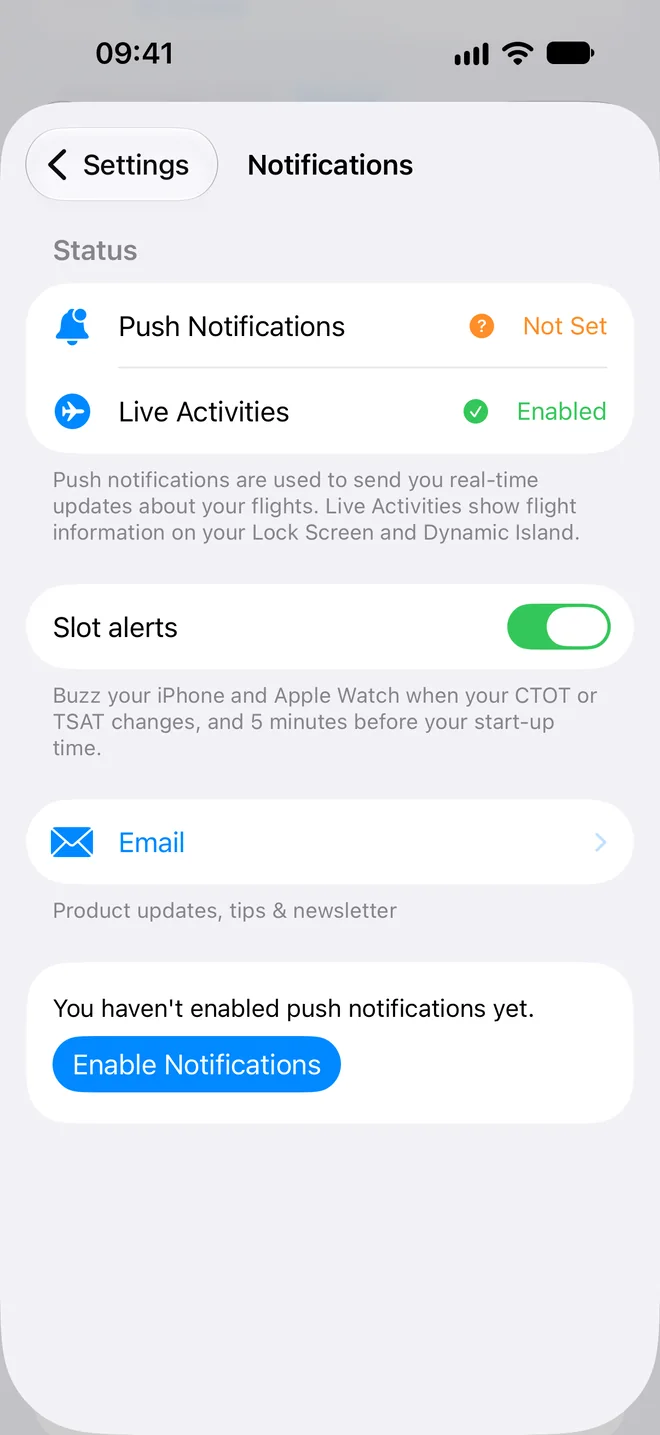
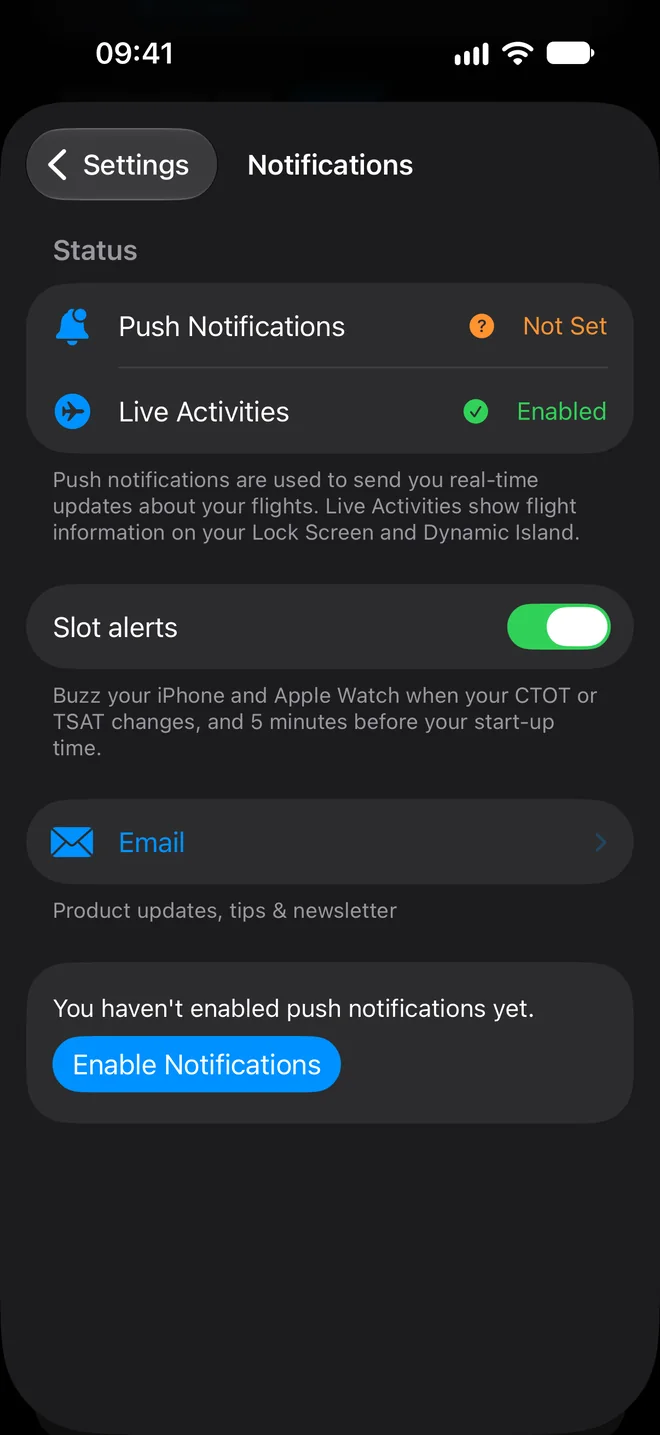
- Push Notifications. Shows Enabled, Disabled, Not Set or Unknown. This is the iOS permission for Jetlog.
- Live Activities. Shows Enabled or Disabled. It must be enabled for the flight cards in Live Activities on your Lock Screen.
- Slot alerts. On by default. Jetlog can buzz your iPhone and Apple Watch when a CTOT or TSAT is issued or changes, and 5 minutes before the TSAT. This works only where the airport supplies the data. Jetlog spaces the alerts out, so a quick series of changes does not give a buzz for each one.
- Email. Opens a screen with Product updates, Tips & tricks and Newsletter. These emails are optional. Account and support emails are always sent.
When push permission was never asked, the screen shows Enable Notifications, which opens the iOS prompt. When push or Live Activities are off, an Action Required section explains what you will miss and has an Open Settings button that opens the iOS settings for Jetlog. Pull down on the screen to refresh the status.
Complete a flight from a notification #
After landing, Jetlog can send a notification asking you to complete the flight. Press and hold it to see Complete with T/O + LDG and Complete. For a simulator session it shows Complete. The first one counts one take-off and one landing.
Departure Alarms #
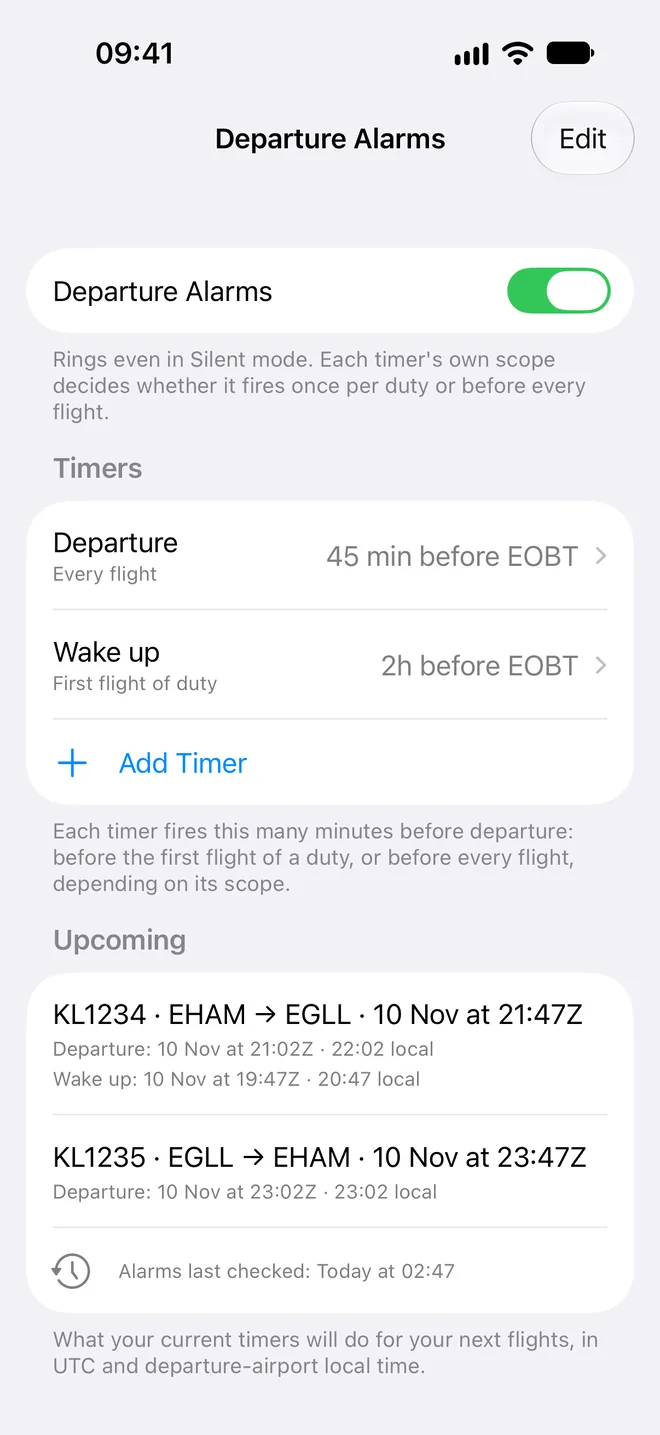
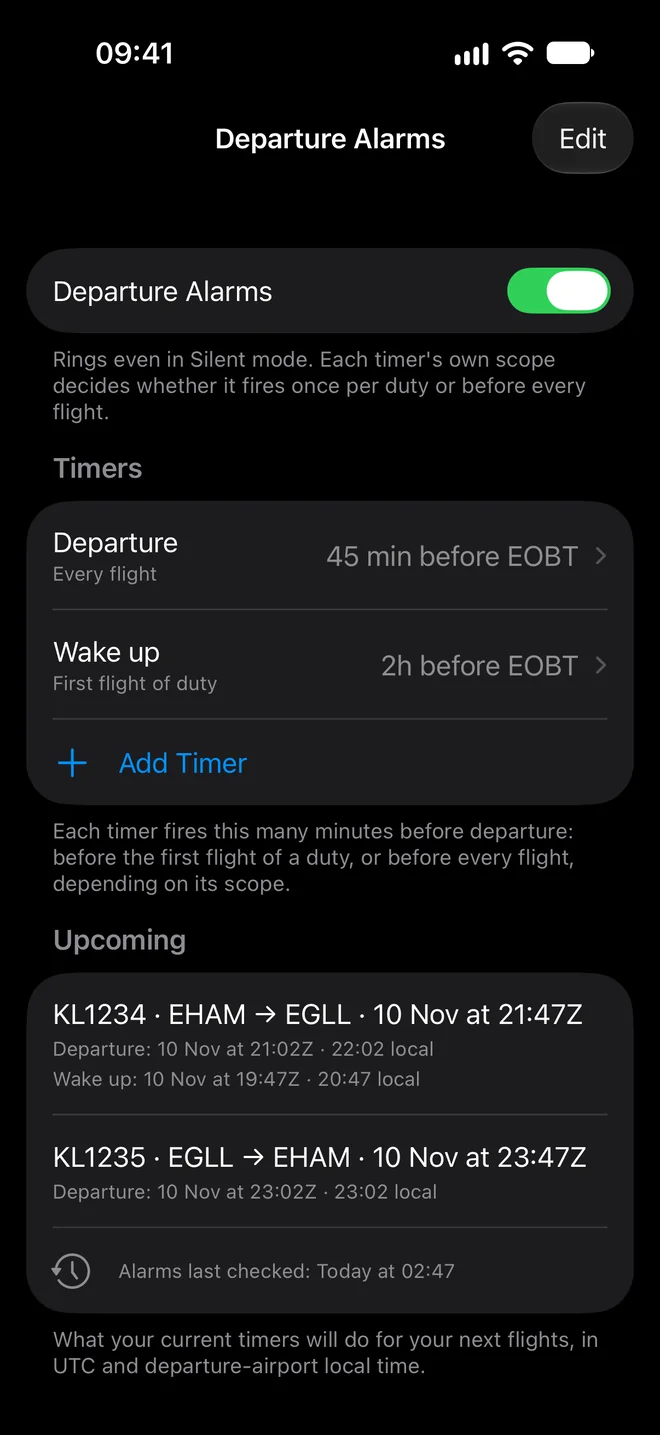
Departure Alarms ring before your flights, even in Silent mode. In Settings, under Preferences, tap Departure Alarms and switch on Departure Alarms.
- Under Timers, tap Add Timer.
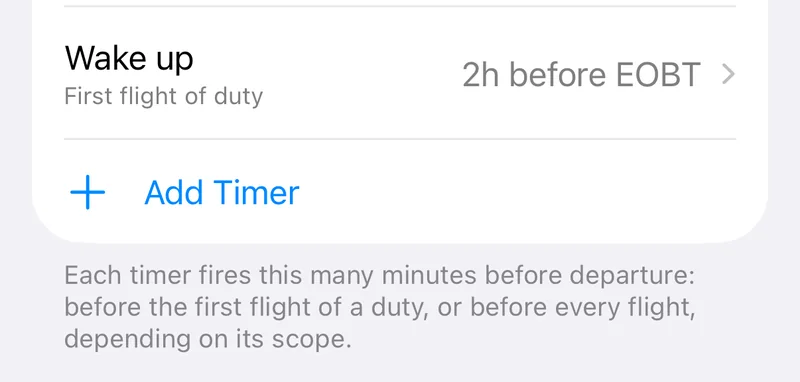
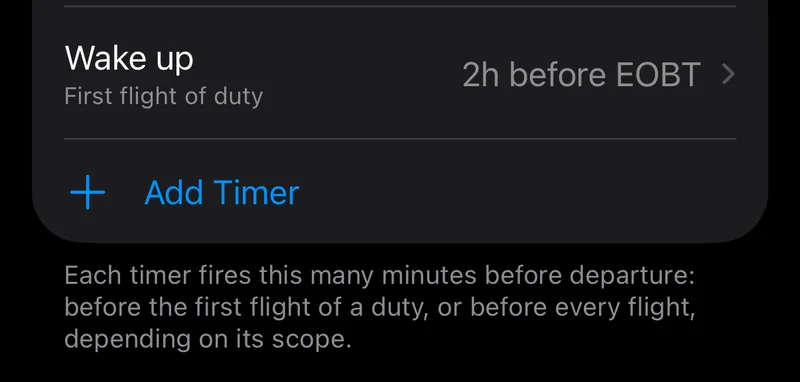
- Give the timer a Name.
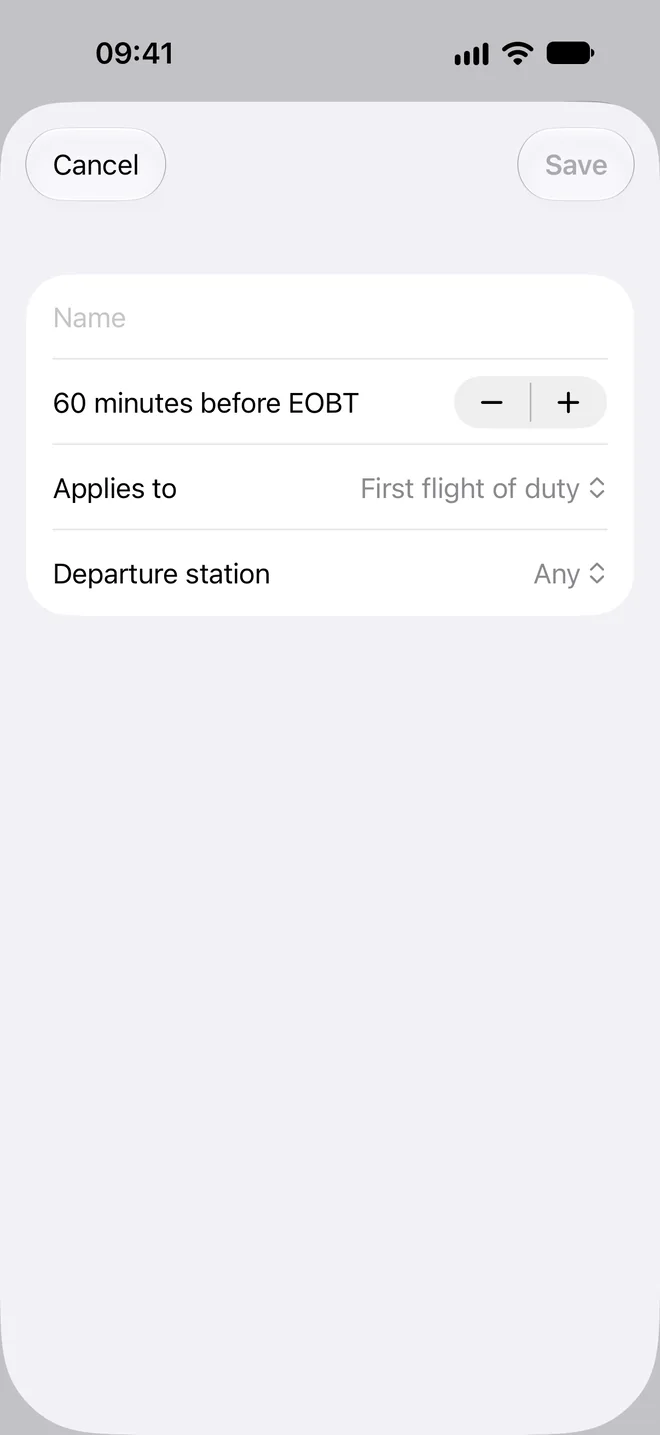
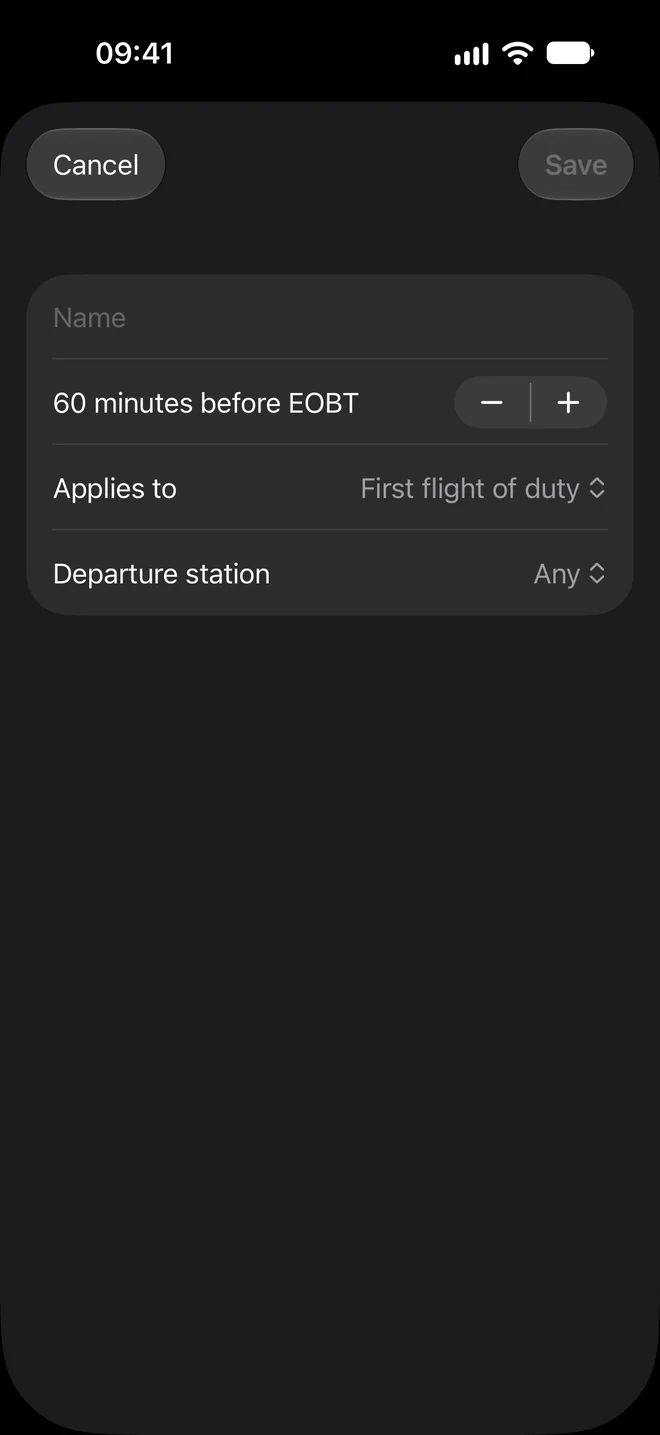
- Set the minutes before EOBT, in steps of 5.
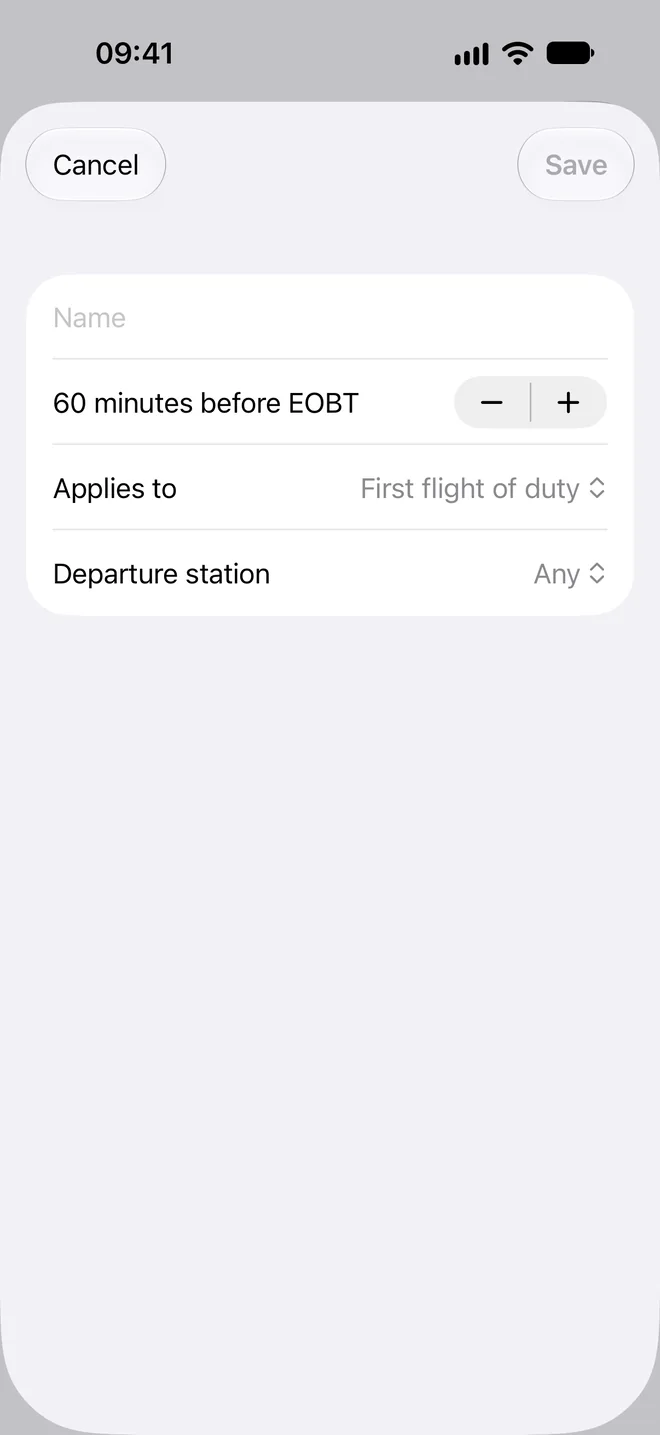
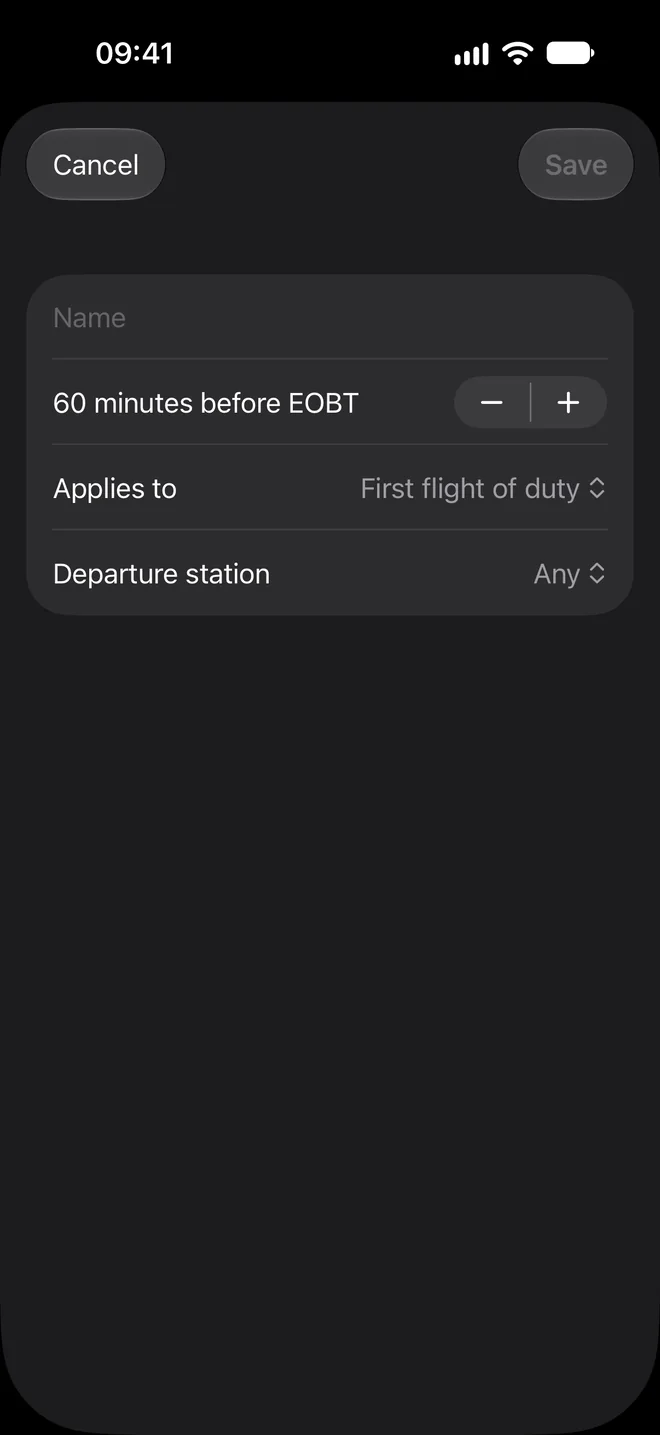
- Under Applies to, choose First flight of duty or Every flight.
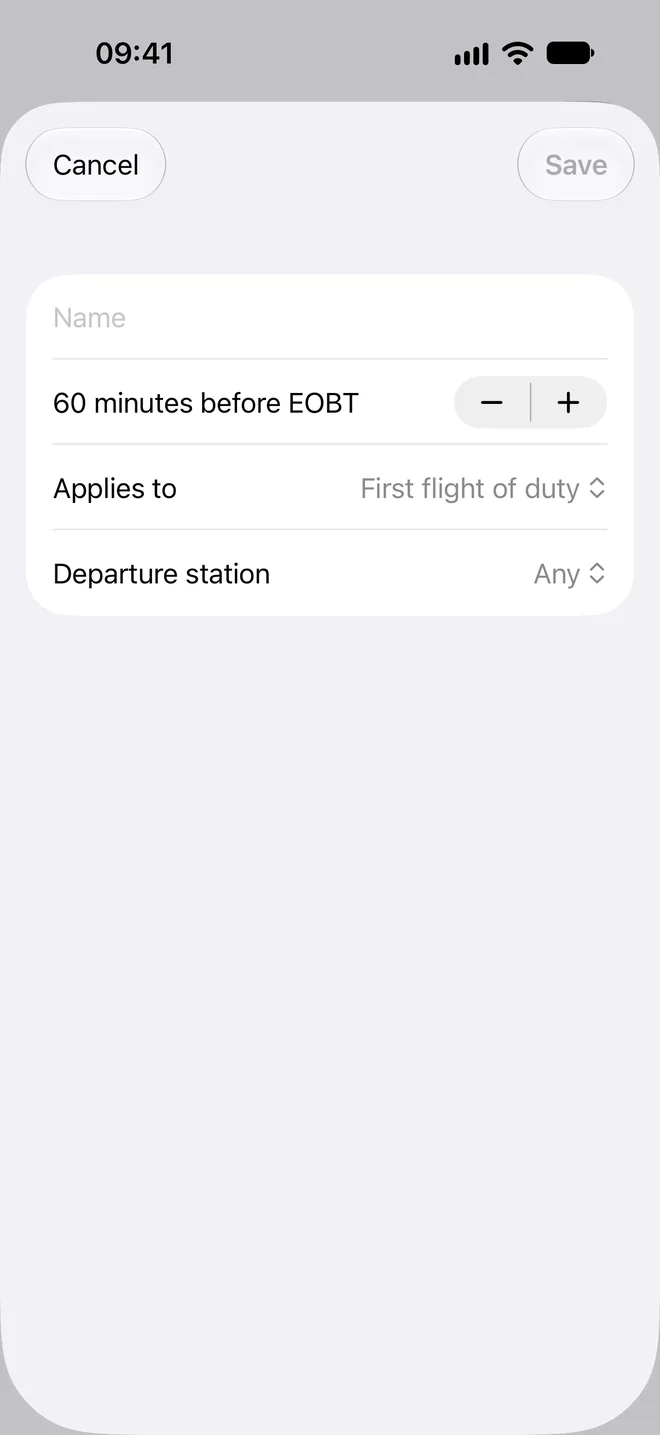
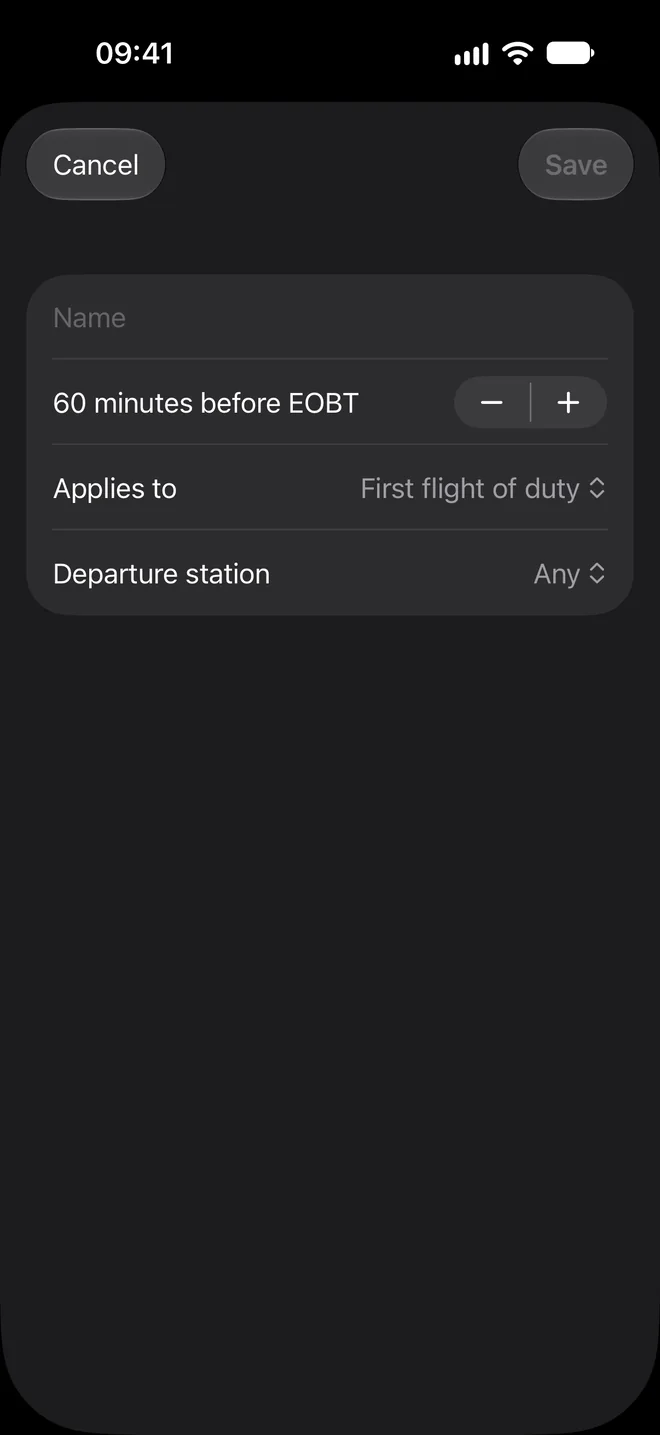
- Under Departure station, choose Any, Home base or Away from base.
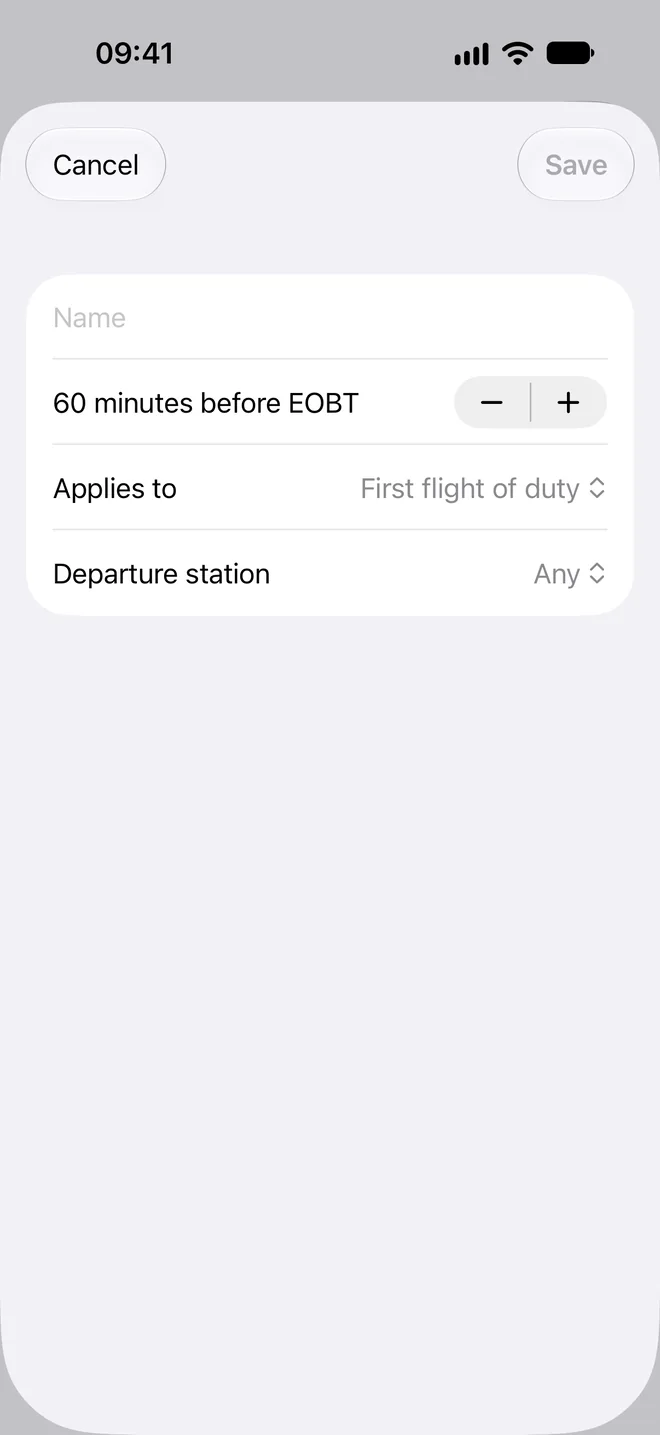
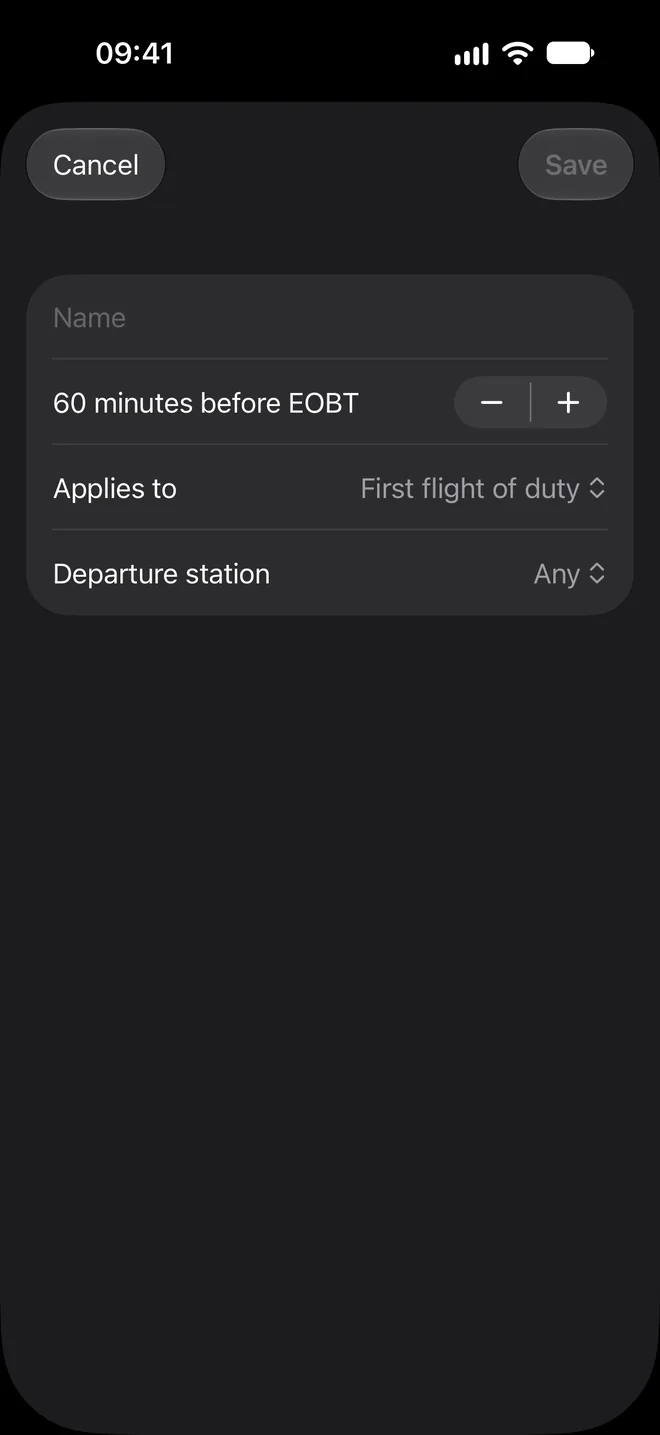
- Tap Save.
A timer for home base or away from base needs a home base in Settings. The scope of each timer decides whether it rings once per duty or before every flight. Under Upcoming you see your flights in the next 7 days with their alarm, or why none rings, or "No upcoming flights in the next 7 days." If you denied alarm access, the screen says "Alarms are disabled". Allow it in the iOS Settings app.
If notifications do not arrive #
- Open Settings > Notifications and read the status rows.
- Tap Open Settings under Action Required and allow notifications and Live Activities.
- Check that you are signed in, see Sign-in and sync problems.
Still stuck? Write to support and a pilot answers.